

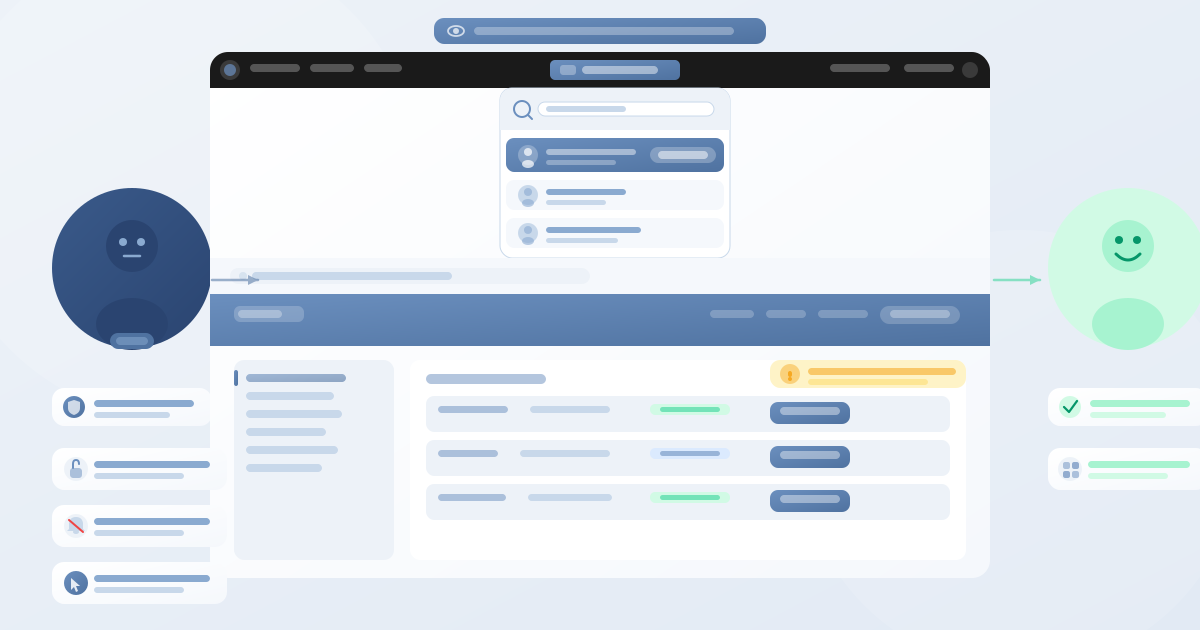
A customer emails saying they can’t complete checkout. Another says a coupon isn’t working. A third is confused about why their account page looks different to what you described. You need to see exactly what they’re seeing — but you can’t reproduce the issue from your admin account.
This is one of the most frustrating situations in WooCommerce store management. Every store owner has been there. You’re troubleshooting blind, asking the customer for screenshots, guessing at the cause, and burning time on back-and-forth emails that could have been resolved in thirty seconds if you’d just been able to look at the store through their eyes.
View as Customer for WooCommerce solves this instantly. It adds a simple Switch User menu to your WordPress admin bar that lets you log in as any registered customer — without their password, without any notification to them — and see your store exactly as they see it. Browse, add to cart, apply coupons, check their account details, and reproduce any issue in real time.
| 1-click | 0 | No pwd |
| Switch to any customer | Configuration needed | Required to switch |
The problem with debugging without customer view
Without customer view, your options are slow and unreliable — screenshots, manual test accounts, or guessing from an admin session that bypasses customer rules. View as Customer removes all these workarounds.
How it works — 3 steps
- Go to your store frontend while logged in as admin — find the Switch User menu in the admin bar
- Search for the customer by name or email address → click Switch to Customer
- To return to admin — log out from My Account. You’re automatically switched back
Debugging use cases
Checkout issues
Switch to customer’s account, add same items, attempt checkout — see any errors exactly as they do.
Coupon not working
Apply the coupon from inside their account — instantly see if it’s a bug, usage limit, or product restriction.
Account page confusion
View their My Account page — see if order details, tracking info, or addresses are missing or hard to find.
Place order on behalf
Complete a purchase for customers who can’t do it themselves — add to cart and checkout from their account.
What you can do as the customer
While switched to any customer account you can:
- Browse store — see exact products, pricing, and visibility rules
- Add / remove products from their cart
- Apply coupons and discounts
- Complete purchases on their behalf
- View saved addresses and account details
- Review order history and tracking information
Key details at a glance
| Feature | View as Customer |
|---|---|
| Password required to switch | ✕ Not needed |
| Customer notified when accessed | ✕ Never notified |
| Multiple admins simultaneously | ✓ |
| Multi-vendor compatible (Dokan, WCFM) | ✓ |
| Performance impact | ✓ Zero impact |
Conclusion
Debugging WooCommerce customer issues without being able to see what they see is slow and frustrating. View as Customer turns a multi-step support process into a thirty-second task — no password, no notification, no configuration.
👁️ See your store the way your customers do.
Install View as Customer and resolve support issues, debug checkout problems, and test your store’s customer experience — instantly.
Lightweight. Zero configuration. Multi-vendor compatible.